
Before you arrive
How-to
What to do after you book
Keep your reference number, look up your request, set up your account and get ready for arrival.
Who can do this: Guest
Updated 1 Oct 2026
After you send a booking request, our team checks it and confirms it by hand. This page shows what you can do while you wait, and how to get ready for arrival with Self Check-in.
Before you start
- Have your reference number. It is on the page shown after you booked, and in your confirmation email.
- Have the mobile number you used for the booking.
- Create your account from the page shown right after you book, if you can. That page links the account to your booking.
Steps
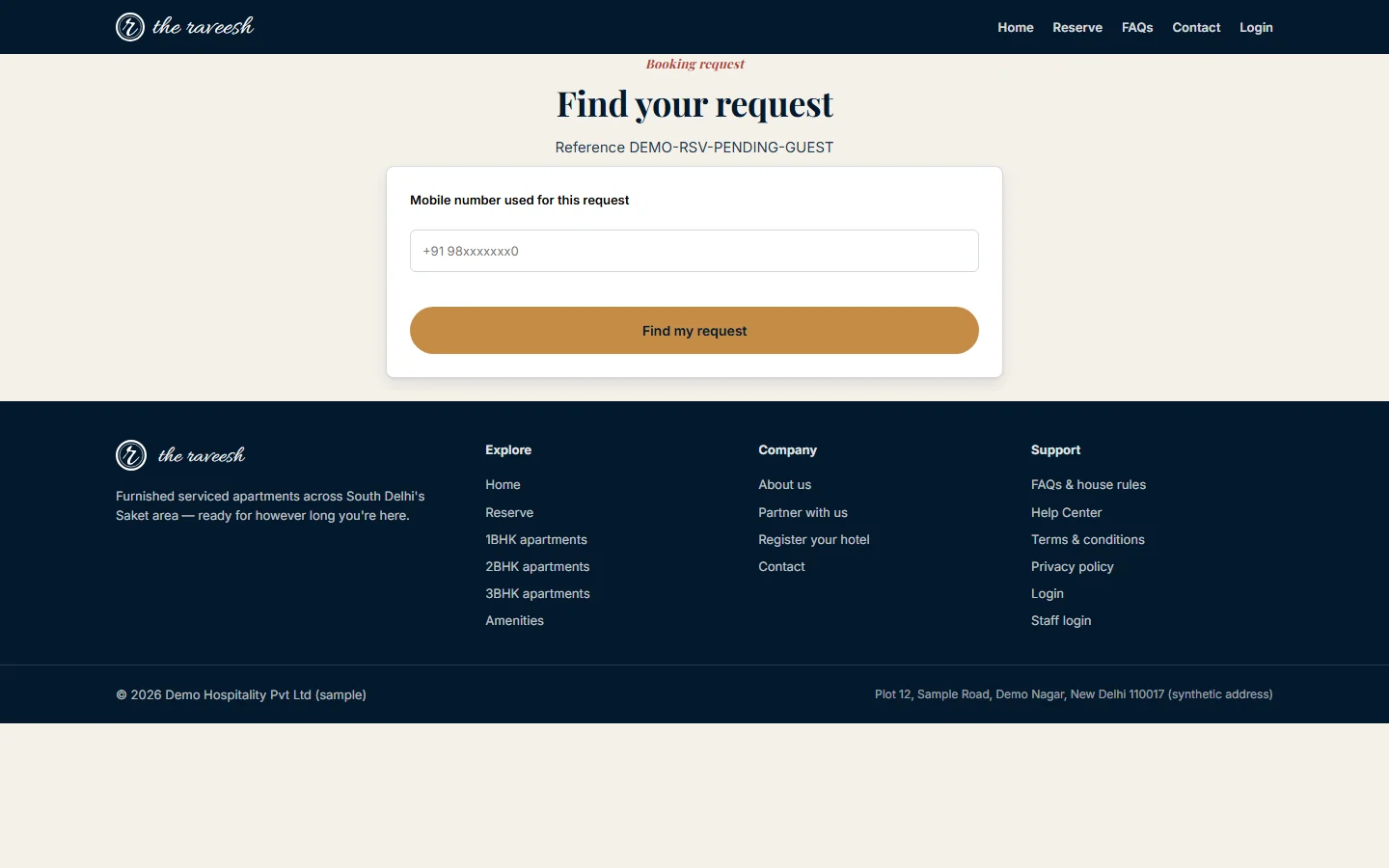
Look up your request
- Open the confirmation page from View / bookmark confirmation.
- Enter the number you used in Mobile number used for this request.
-
Tap Find my request.
Set up your account
- Tap Create my account on the page shown right after you booked.
- Sign in to your guest account.
-
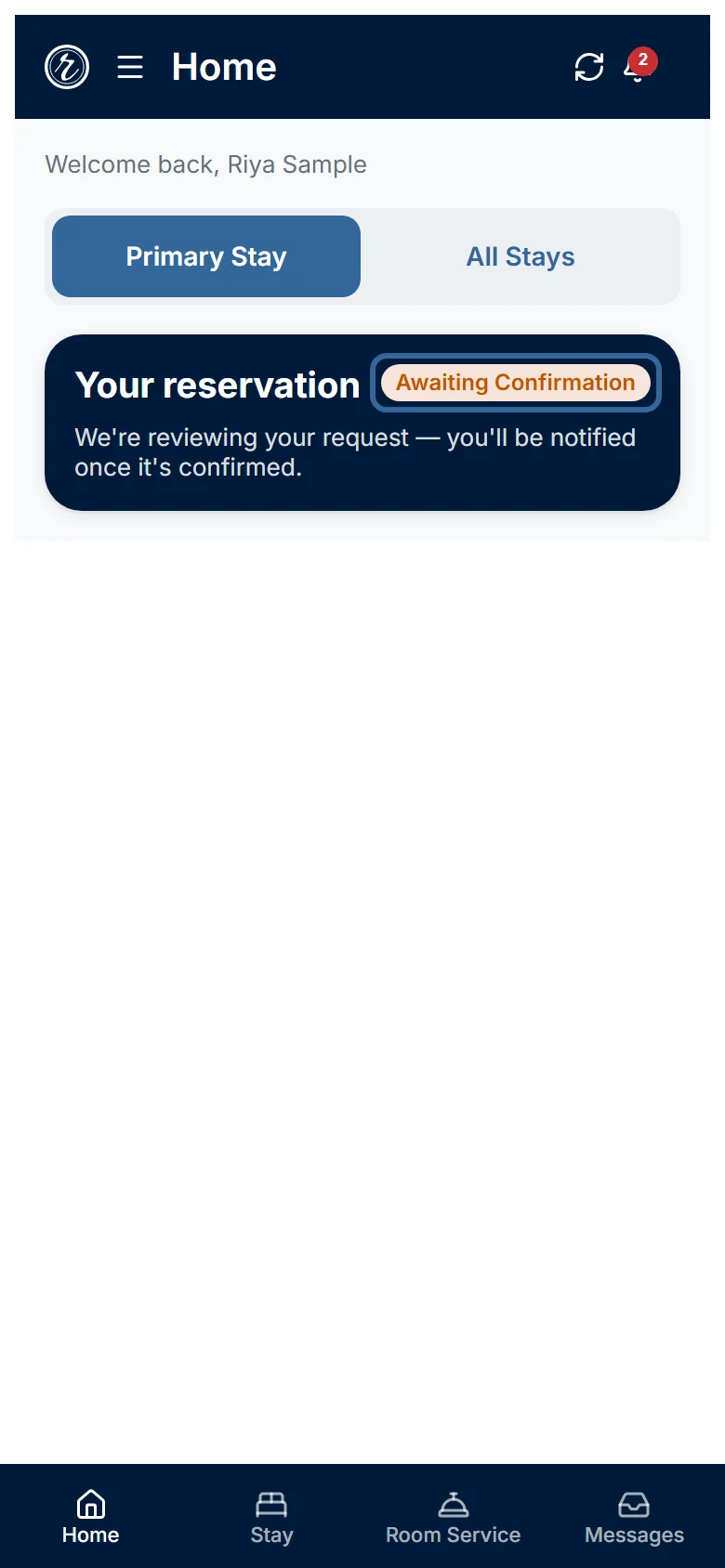
Open the Home tab.
Get ready for arrival
- Wait until the stay changes to Reserved.
- Open the Stay tab.
- Tap Start Self Checkin.
- Add your ID details before you travel.
What happens next
- Our team reviews your request. They call or message you to confirm the details.
- While the team reviews, Home shows Awaiting Confirmation. It says we are reviewing your request.
- When the team approves, your stay shows Reserved. We may also send an email. Push notices are not guaranteed to arrive.
- If the team cannot take the booking, the stay is cancelled. It no longer shows on Home.
- The lookup page shows your apartment, dates, guests and your mobile number with most digits hidden. It always says Reserved · awaiting confirmation. Check your Home tab for the latest state.
Good to know
- Only the page shown right after you book links a new account to your booking. It offers Set a password to track this booking online and Create my account.
- The sign-up page on the website asks only for an email and a password. When you confirm your email, a booking made with the same email is added to your portal.
- The booking lookup page does not offer account sign-up.
- If no booking was made with your email, Home shows No active stay yet.
- In that case, tap Reserve a stay on Home to send a new booking request.
- Also in that case, the Messages tab shows Something went wrong.
Who does what
- You: keep your reference, create your account and do Self Check-in.
- Our team (Building Manager or Admin): confirms or rejects your request and contacts you.
Watch out
- The lookup needs both the reference number and the same mobile number. A wrong number shows We couldn't find a matching request.
- You can do Self Check-in while your stay is still waiting for approval. The team still has to approve it before they can check you in.
- Need to change dates or cancel? You cannot do either in the portal. Send a message from the Stay tab, or call us.