
Your portal
How-to
Sign up, log in and reset your password
Create your guest account with an email code, log in, reset a forgotten password or change your password.
Who can do this: Guest
Updated 1 Oct 2026
Your guest account lets you track a booking, do Self Check-in, order services and message us. You sign in with your email and a password. We check your email once, with a short code, when you sign up.
Before you start
- Use an email address you can open right now. The code goes there.
- If you just sent a booking request on our website, create your account from Create my account on the page shown right after it. That links the account to your booking.
- Choose a password that is long and not common. Short or simple passwords are refused.
Steps
Sign up
- Open our website.
- Tap Login in the top menu.
-
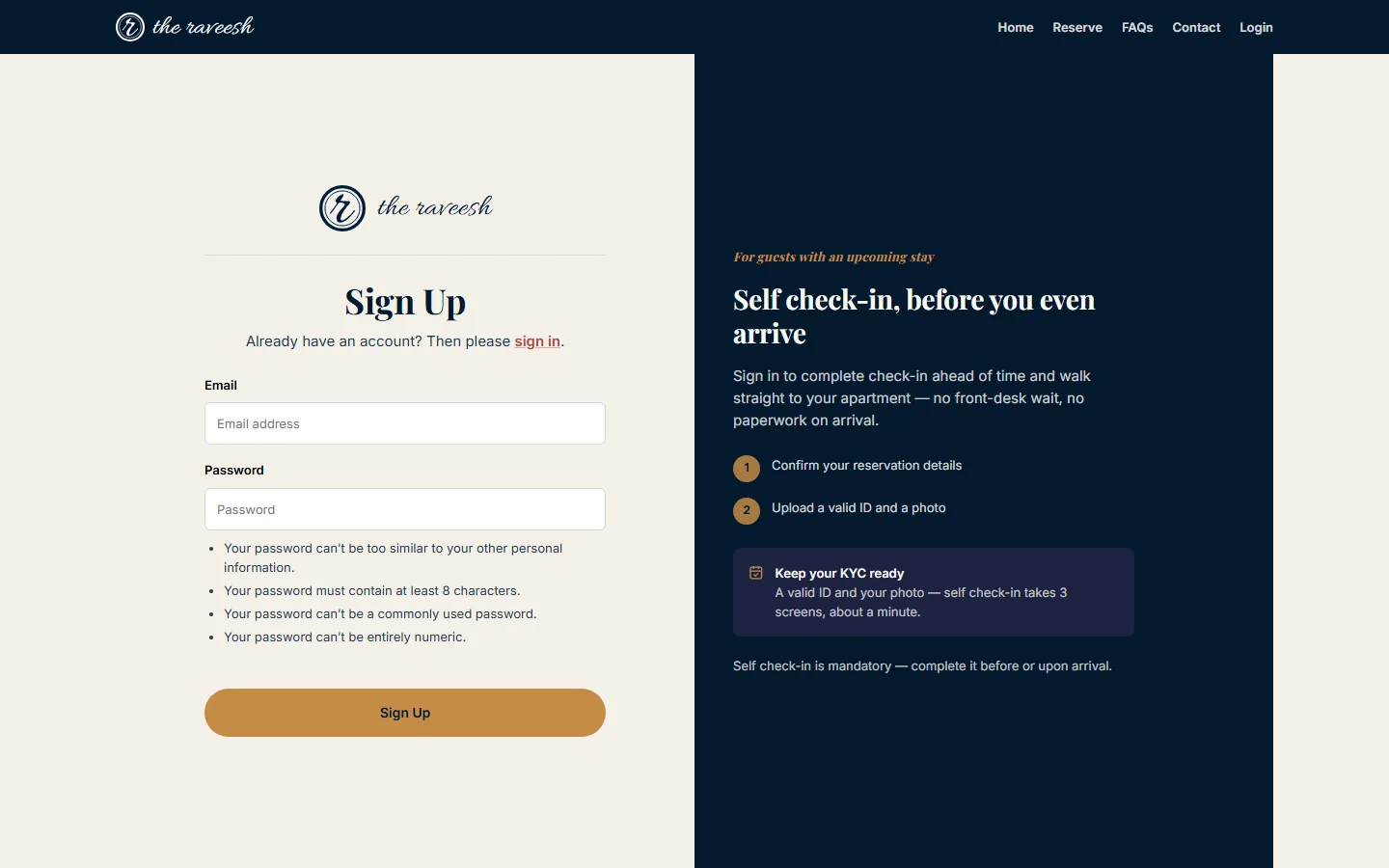
Tap the sign up link on the Sign in page.
-
Enter your Email.
- Enter your Password.
- Tap Sign Up.
- Open the email we sent you.
- Enter the code on the Enter Email Verification Code page.
- Tap Confirm.
You can also start from the booking page. After you send a booking request, it offers Create my account. You only set a password there. This is the way that links the account to your booking.
Log in
- Tap Login in the top menu.
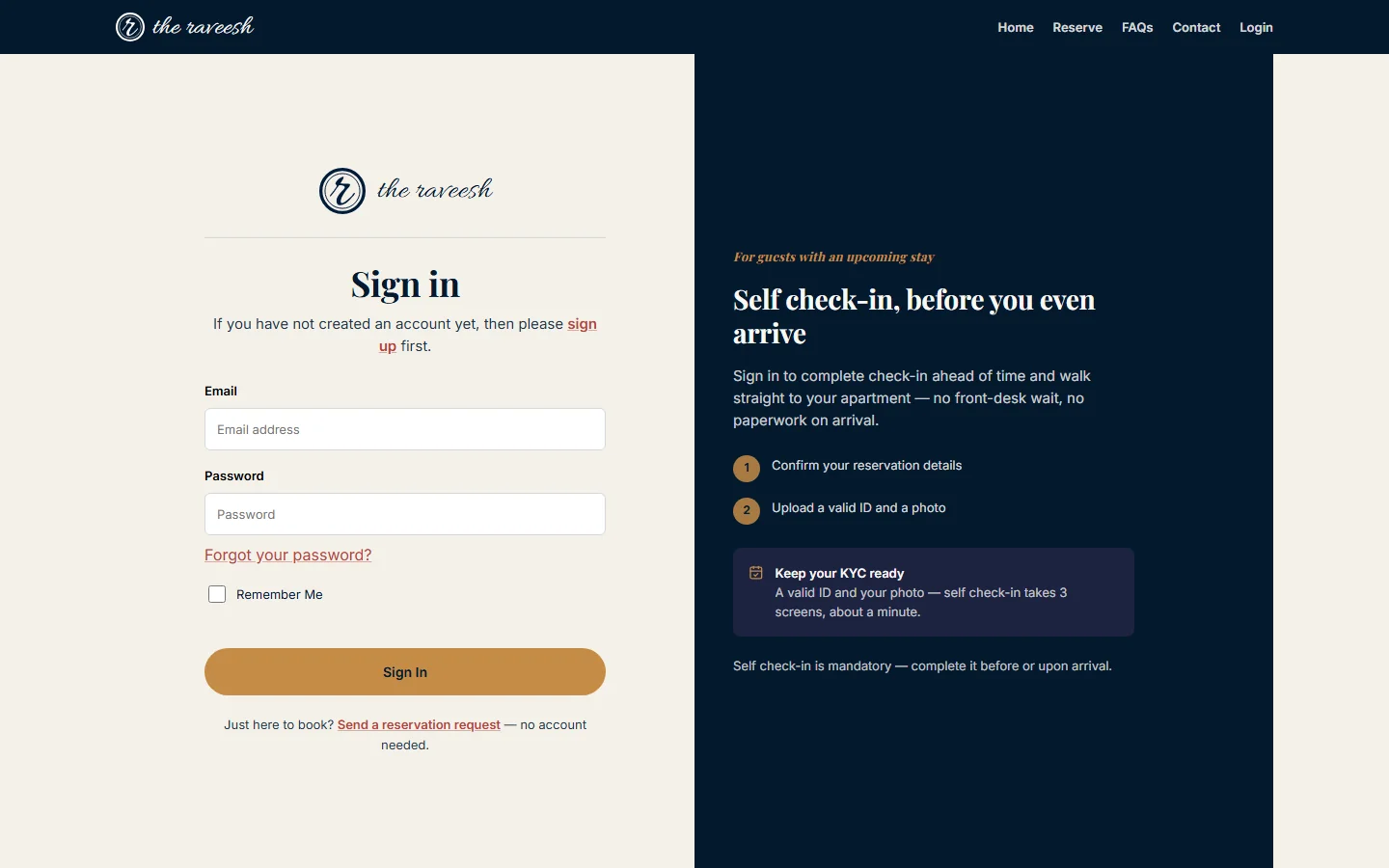
- Enter your Email.
- Enter your Password.
-
Tap Sign In.
Reset a forgotten password
- Tap Forgot your password? under the password field on the Sign in page.
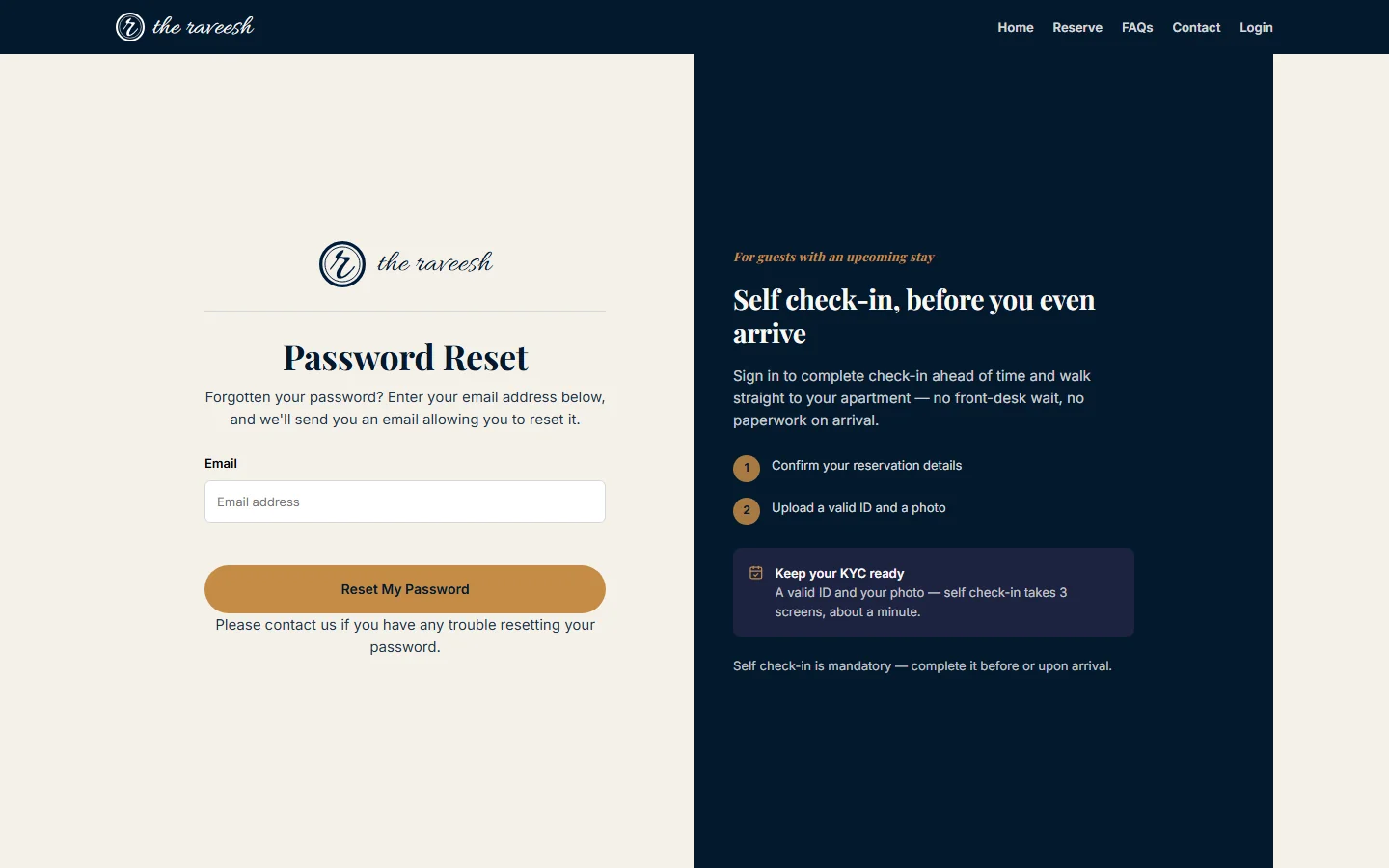
- Enter your Email.
-
Tap Reset My Password.
-
Open the email we sent you.
- Tap the link in the email.
- Enter a Password.
- Enter the same password again in Password (again).
- Tap Change Password.
Change your password when you are signed in
- Tap the menu button at the top left.
- Tap View profile.
- Tap Change password under Account.
- Enter your Current Password.
- Enter a New Password.
- Enter it again in New Password (again).
- Tap Change Password.
What happens next
- After you confirm the code, you are signed in. You land on the Stay tab if you have a stay. Otherwise you land on Home.
- After a reset, the page says Your password is now changed. Log in with the new password.
- A new account with no booking shows No active stay yet. Use Reserve a stay on Home.
- To log out, open Profile and tap Log out. Then confirm in the Log out? box.
Good to know
- The sign-up form asks only for your Email and Password. It does not ask for a mobile number.
- An account made this way is linked by its confirmed email. A booking made with the same email is added to your portal, on any phone or browser. This happens when you confirm the code or sign in.
- If no booking was made with that email, Home shows No active stay yet.
- Reserve on such an account asks for your name, mobile and email once, then links them to the account.
- To link an account to a booking, create it from Create my account on the page shown right after you book on our website.
- If you missed that page, sign in with the same email. Your booking is added to your portal.
- The booking lookup page does not offer account sign-up.
Who does what
- You: create the account, confirm your email, and keep your password private.
- Our team: cannot see your password. We cannot sign in for you.
Watch out
- The code expires after a short time. Tap Request new code if it has expired.
- Tap Use a different email address if you typed the wrong email.
- If the reset email does not arrive, look in your spam folder. The page also asks you to contact us if it still does not arrive after a few minutes.
- A reset link works once. If you see Bad Token, ask for a new reset link.
- After five wrong passwords in a row, sign-in is blocked for one hour.
- There is no sign-in by code. You always use your password.
- Team members (staff, Building Managers and Admins) use a different sign-in page, reached from Staff login at the bottom of the website. It asks for a username, not an email. It has its own Forgot password? page, and it asks new team members to set a new password on first sign-in. These pages are not for guests. If you type your guest email there, you are sent back to the guest sign-in page.