
Booking
How-to
Book a stay on the website
Pick an apartment type, choose your dates and send a booking request from our website. You do not need an account first.
Who can do this: Guest
Updated 1 Oct 2026
You can send a booking request from our website without an account. Our team confirms every request by hand. Nothing is confirmed automatically, and you pay nothing online.
Before you start
- Know your check-in and check-out days, and how many adults and children are coming.
- Have your mobile number and email ready. We need both.
- You do not need an account. You can create one at the end.
- To look first, use Find your apartment by type on the home page. Tap See all, then View details, then Reserve.
Steps
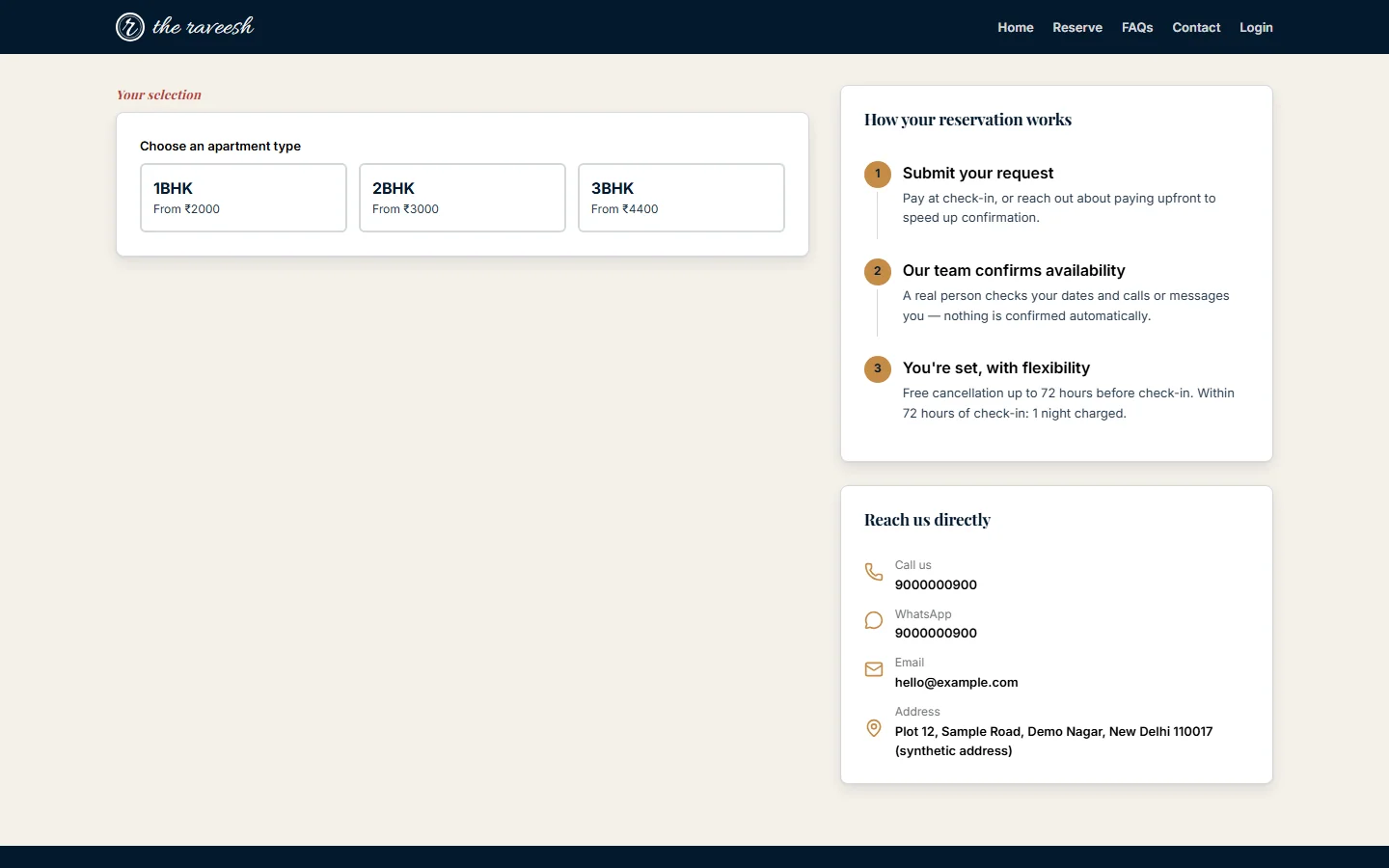
Choose an apartment type
- Open our website.
- Open the menu if you are on a phone.
- Tap Reserve.
-
Tap the type you want under Choose an apartment type.
Pick your dates and guests
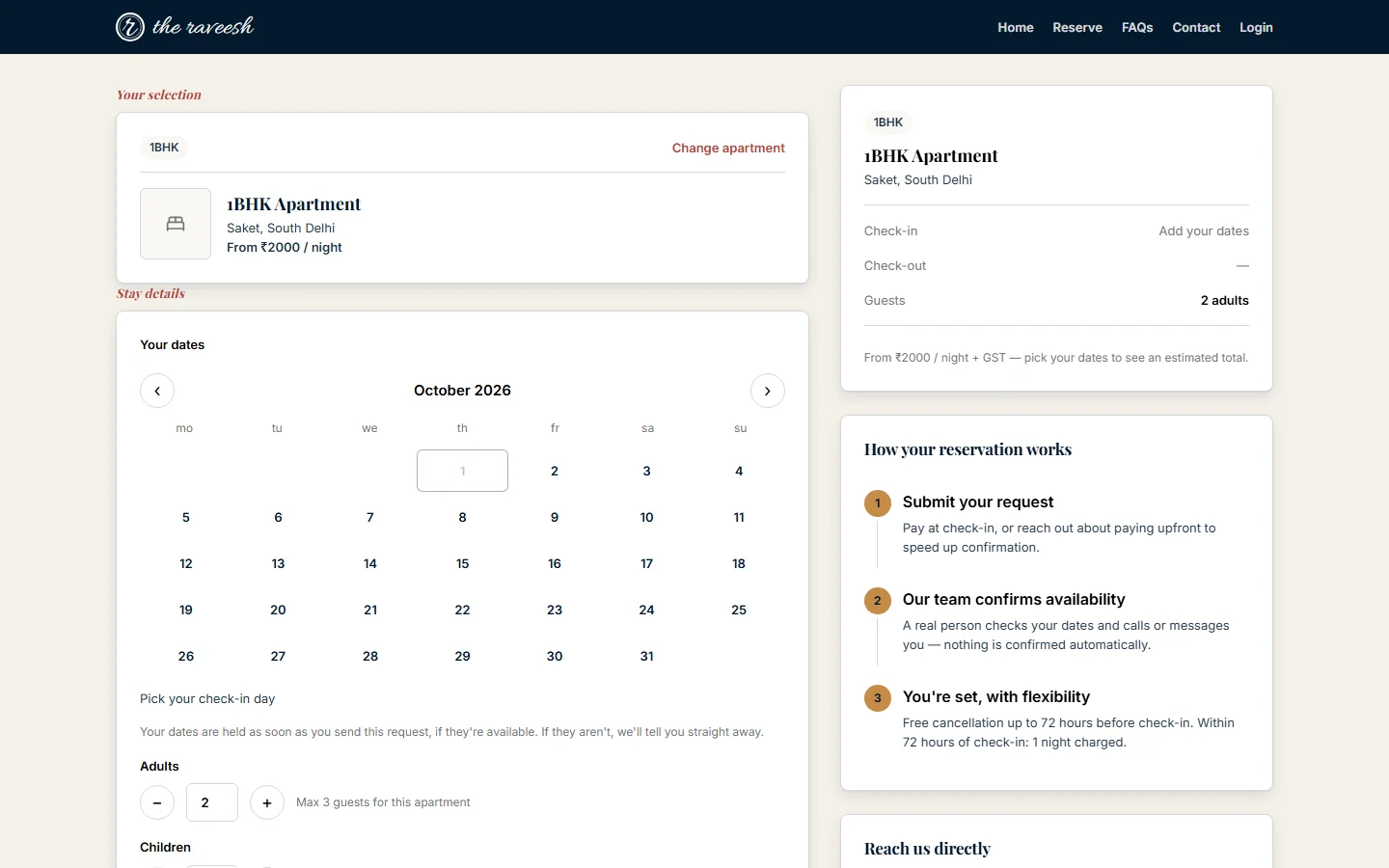
- Tap your check-in day in the calendar.
- Tap your check-out day.
- Set the number of Adults.
- Set the number of Children.
- Check the estimated total under the dates.
-
Tap Continue to review.
Review and send your request
- Check your dates and guests under Review & reserve.
- Tap Reserve.
- Enter your Mobile number.
- Tap Yes, that's right to confirm the number shown.
- Enter your Full name.
- Enter your Email.
- Type a Special request or note (optional) if you need one.
- Tap Hold my dates.
What happens next
- If your dates are free, we hold them and show Your dates are held. You also see a reference number. Keep it.
- If we already know your mobile number, the page says Welcome back.
- If you have no account, the page asks you to Set a password to track this booking online. Tap Create my account there. Only this page links the account to your booking. See the article Sign up, log in and reset your password.
- If you already have an account, the page offers Sign in to your account.
- We usually send a confirmation email to the address you gave. Check your spam folder if it does not arrive.
- Our team reviews the request, then calls or messages you to confirm. Until then the booking shows Reserved · awaiting confirmation.
- If the dates are not free, the page tells you straight away.
Who does what
- You: choose the apartment, the dates and the guests, and send your contact details.
- Our team (Building Manager or Admin): checks availability, then approves or rejects the request.
Watch out
- Sold-out days are blocked in the calendar. The estimate is not a final invoice.
- If an apartment shows Enquire instead of Reserve, it is not open for online requests. Send an enquiry from the Contact page.
- The Check availability button on the home page takes you to the apartment type that suits your group size. It does not search your dates.
- Change dates on the review step takes you back to the first step. Change apartment lets you pick another type.